How to Bleep Swear Words in Premiere Pro (Step-by-Step)
If you are creating content for YouTube, social media, or professional clients, leaving profanity in your video can be a costly mistake. From YouTube demonetization risks to angry clients, the wrong word at the wrong time changes everything.
If you use Adobe Premiere Pro, you generally have two options for censoring bad words:
- The Manual Way: Free, but incredibly tedious.
- The AI Way: Using an automatic profanity remover to do it in seconds.
In this guide, we’ll walk you through the manual method step-by-step, and then show you how to automate the entire workflow to save hours of editing time.
Method 1: How to Bleep Audio Manually in Premiere Pro
If you only have one or two swear words to hide, the manual method works fine. It involves cutting the audio waveform, lowering the volume of the swear word, and layering a “beep” sound effect over it.
Step 1: Get a Beep Sound Effect
Premiere Pro creates a default “Bars and Tone” asset that you can use, but it’s often easier to download a standard “Censor Beep” sound effect (mp3 or wav). Drag this file into your project bin.
Step 2: Locate the Profanity
Expand your audio track in the timeline so you can see the waveform clearly. Play through your video until you hear the curse word.
Step 3: The Razor Tool
To isolate the bad word, you need to cut the audio clip on both sides.
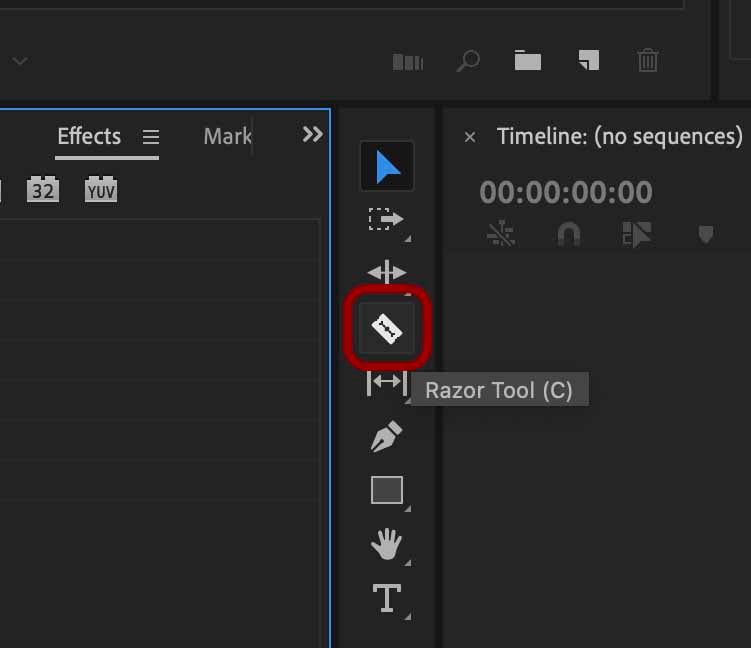
- Select the Razor Tool from the toolbar (or press shortcut
C). - Make a cut immediately before the swear word starts.
- Make a cut immediately after the swear word ends.
- Switch back to the Selection Tool (shortcut:
V).
Step 4: Mute or Lower the Volume
Click on the isolated clip of the swear word you just cut. You can either:
- Delete it entirely (if you want silence).
- Lower the gain to -∞ by right-clicking > Audio Gain.
Step 5: Add the Beep
Drag your “Censor Beep” sound effect onto the audio track below your dialogue. Trim the beep so it matches the length of the silenced word exactly.
Result: The video plays, the voice cuts out, the beep plays, and the voice resumes.
The Problem with Method 1
While this works for a 30-second clip, imagine doing this for a 20-minute YouTube video or a podcast. If you have 50 curse words, you have to perform Steps 2–5 fifty separate times.
That is hours of work just to make a video “safe.” Fortunately, there is a faster way.
Method 2: The Automated Way (Using AI)
In 2025, manual editing is obsolete. Tools like Bleepify use AI to “watch” your video, detect the swear words, and censor them automatically.
Unlike other tools that only process audio files, Bleepify handles full video files directly.
Step 1: Upload Your Video
You don’t need to strip the audio or export complicated XMLs. Just drag and drop your raw video file (MP4, MOV, etc.) directly into Bleepify.
Step 2: AI Detection
The AI scans your video content. It understands context and generates a transcript of your video with all potential profanity highlighted down to the millisecond.
Step 3: Choose Your Sound Effects
You have full creative control over how the censorship sounds.
- The Classic Beep: Perfect for TV-style censorship.
- Sound Effects Library: Choose from a library of custom sounds (like a “Quack,” “Dolphin,” or “Glitch”) to match your video’s vibe.
- Silence: Mute the word completely for a subtle edit.
Step 4: Export Ready-to-Use Video
Once you click “Process,” Bleepify edits the video for you.
You can download the finalized video file ready to upload to YouTube immediately. Or, if you are still working on your edit in Premiere, you can download just the processed audio track to drag back into your timeline.
That’s it. No razor tools, no keyframes, no manual syncing.
Comparison: Manual vs. AI
| Feature | Manual Editing (Premiere) | Automatic (Bleepify) |
|---|---|---|
| Time per 10 min video | 30–60 Minutes | 2 Minutes |
| File Support | Manual Audio Editing | Full Video & Audio |
| Effort | High (Razor, Cut, Place) | Low (Drag & Drop) |
| Sound Effects | Find & Sync Manually | Built-in Library |
Conclusion
If you are a professional editor or a creator trying to grow a channel, your time is your most valuable asset. Spending an hour manually bleeping words in Premiere Pro is time you could have spent filming your next video.
Ready to stop editing manually? Try Bleepify for free and automatically remove profanity from your next video in seconds.